
bubbletea
npx skills add https://github.com/ggprompts/tfe --skill bubbleteaInstala esta habilidad con la CLI y comienza a usar el flujo de trabajo SKILL.md en tu espacio de trabajo.
TFE - Terminal File Explorer



A powerful and clean terminal-based file explorer built with Go and Bubbletea. TFE combines traditional file management with modern features like dual-pane preview, syntax highlighting, and an integrated AI prompts library. Works beautifully on desktop and mobile (Termux) with full touch support.
Features
- Clean Interface: Minimalist design focused on usability
- Dual Navigation: Both keyboard shortcuts and mouse/touch support
- Mobile Ready: Full touch controls and optimized single-pane modes for Termux/Android
- F-Key Controls: Midnight Commander-style F1-F10 hotkeys for common operations
- Context-Aware Help: F1 automatically jumps to relevant help section based on current mode
- Fuzzy Search: Blazing fast file search with external fzf + fd/find (Ctrl+P or click 🔍)
- Context Menu: Right-click or F2 for quick access to file operations
- Quick CD: Exit TFE and change shell directory to selected folder
- Dual-Pane Mode: Split-screen layout with file browser and live preview
- File Preview: View file contents with syntax highlighting and line numbers
- Text Selection: Mouse text selection enabled in preview mode
- Markdown Rendering: Beautiful markdown preview with Glamour
- External Editor Integration: Open files in Micro, nano, vim, or vi
- Command Prompt: Midnight Commander-style always-active command line
- Favorites System: Bookmark files and folders with quick filter (F6)
- Clipboard Integration: Copy file paths to system clipboard
- Multiple Display Modes: List, Detail, and Tree views
- Emoji Icons: Visual file/folder indicators using file type detection
- Obsidian Vault Detection: Folders with
.obsidian/config display 🧠 brain emoji instead of folder icon - Smart Sorting: Directories first, then files (alphabetically sorted)
- Scrolling Support: Handles large directories with auto-scrolling
- Hidden File Filtering: Automatically hides dotfiles for cleaner views
- Double-Click Support: Double-click to navigate folders or preview files
- Prompts Library: F11 mode for AI prompt templates with fillable input fields, file picker (F3), clipboard copy, and quick template creation via File menu
- Trash/Recycle Bin: F12 to navigate to trash (auto-exits when you navigate elsewhere), restore or permanently delete items (F8 moves to trash)
- HD Image Previews: Inline HD image rendering via Kitty/iTerm2/Sixel protocols in preview pane
- Image Support: View images with viu/timg/chafa and edit with textual-paint (MS Paint in terminal!)
- File Operations: Copy files/folders with interactive file picker, rename, create new prompts via File menu
- Preview Search: Ctrl-F to search within file previews, 'n' for next match, Shift-N for previous
- Scroll Indicators: Visual scroll position (Line X/Y with %) and scrollbars in markdown/code previews
- Mouse Toggle: Press 'm' in full preview to remove border for clean text selection
- Git Workspace Management: Visual triage of repos with status (⚡ Dirty, ↑ Ahead, ↓ Behind, ✓ Clean), context menu git operations (Pull, Push, Sync, Fetch), auto-refresh after operations
- Games Integration: Optional TUIClassics integration - launch Snake, Minesweeper, Solitaire, 2048 via Tools menu
Demo Video
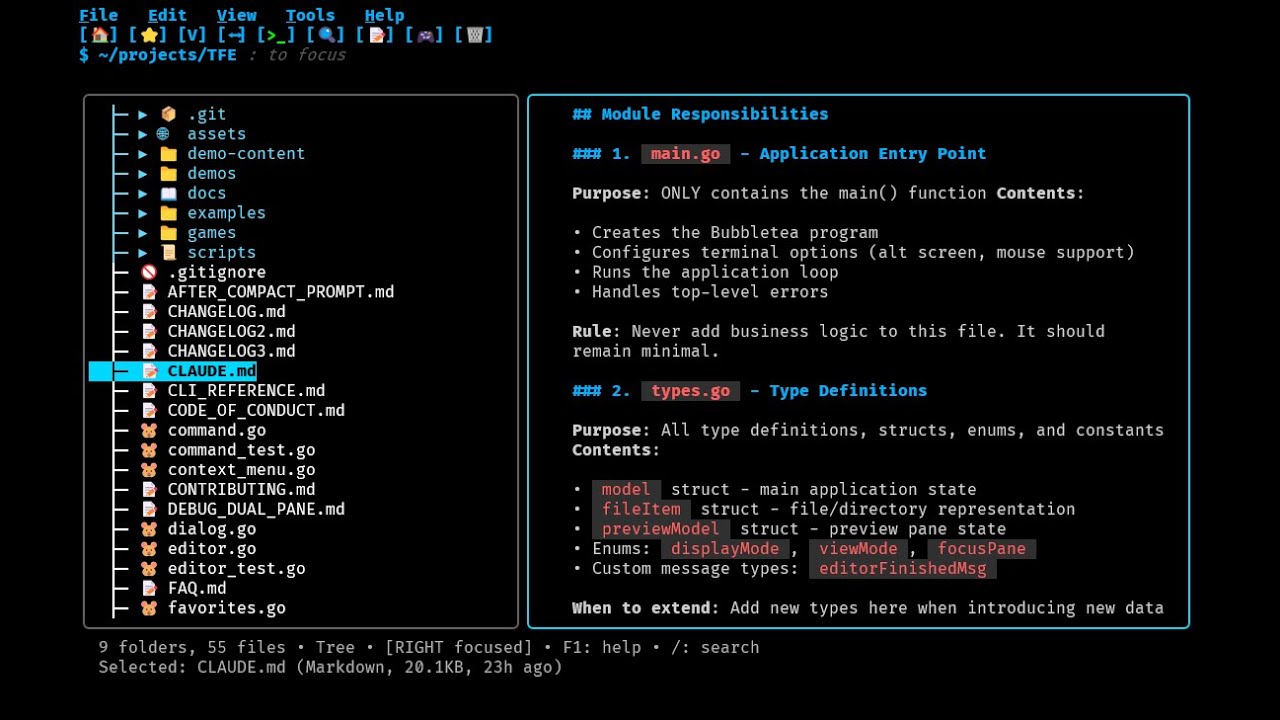
Full walkthrough: navigation, dual-pane mode, fuzzy search, prompts library, and real-world usage with pyradio
Screenshots
Main Interface (Dark Theme)

Clean file browser with Detail view, toolbar buttons, and command prompt
Light Theme

TFE with light color scheme for different terminal preferences
Dual-Pane Preview Mode

Split-screen with syntax-highlighted preview and line numbers
Tree View Navigation
Hierarchical folder navigation with expandable directories
Context Menu

Right-click menu with file operations and Quick CD
Prompts Library (F11)

AI prompt templates with fillable fields and variable substitution
Fuzzy Search (Ctrl+P)

Blazing fast file search using external fzf + fd/find
Feature Comparison
TFE stands out from other terminal file managers with unique features designed for modern AI-assisted workflows:
| Feature | TFE | ranger | nnn | lf | yazi | Midnight Commander |
|---|---|---|---|---|---|---|
| Language | Go | Python | C | Go | Rust | C |
| AI Prompts Library | ✅ Unique! | ❌ | ❌ | ❌ | ❌ | ❌ |
| Fillable Field Templates | ✅ Unique! | ❌ | ❌ | ❌ | ❌ | ❌ |
| Mobile/Termux Tested | ✅ Fully tested | Partial | ✅ | Partial | ⚠️ | Partial |
| Touch Controls | ✅ Full support | Limited | Limited | Limited | Limited | Limited |
| Context-Aware F1 Help | ✅ | ❌ | ❌ | ❌ | ❌ | ✅ |
| Dual-Pane Preview | ✅ | ✅ | ❌ | ❌ | ✅ | ✅ |
| Syntax Highlighting | ✅ (Chroma) | ✅ | ✅ | ❌ | ✅ | ✅ |
| Fuzzy Search | ✅ | ✅ | ✅ | ✅ | ✅ | ❌ |
| Tree View | ✅ | ✅ | ❌ | ❌ | ✅ | ✅ |
| Trash/Recycle Bin | ✅ | ❌ | ⚠️ Plugin | ❌ | ❌ | ❌ |
| Quick CD (Shell Integration) | ✅ | ✅ | ✅ | ✅ | ✅ | ✅ |
| Image Viewing (TUI) | ✅ | ✅ | ✅ | ❌ | ✅ | ❌ |
| Markdown Preview | ✅ (Glamour) | ✅ | ❌ | ❌ | ✅ | ❌ |
| Git Status Indicators | ✅ Unique! | ❌ | ❌ | ❌ | ❌ | ❌ |
| Git Operations | ✅ (Pull/Push/Sync) | ❌ | ❌ | ❌ | ❌ | ❌ |
| Context Menu | ✅ | ❌ | ❌ | ❌ | ❌ | ✅ |
| Mouse Support | ✅ Full | Limited | ❌ | ❌ | ✅ | ✅ |
| F-Key Shortcuts | ✅ MC-style | Custom | Custom | Custom | Custom | ✅ |
| Command Prompt | ✅ Always visible | : command |
! shell |
: command |
: command |
✅ |
| Favorites/Bookmarks | ✅ | ✅ | ✅ | ✅ | ✅ | ✅ |
| External Editor | ✅ Auto-detect | ✅ Config | ✅ Config | ✅ Config | ✅ Config | ✅ Config |
What Makes TFE Unique?
-
🤖 AI Prompts Library - The only terminal file manager with an integrated prompt template system designed for AI workflows. Manage prompt templates, fill variables interactively, and copy rendered prompts with F5.
-
📱 Mobile-First Design - Extensively tested on Termux/Android with full touch controls (tap, double-tap, long-press). Other file managers have partial mobile support, but TFE is built with mobile as a first-class platform.
-
📝 Fillable Field Templates - Interactive variable substitution with smart type detection (file paths, dates, custom inputs). No other file manager has this feature.
-
🗑️ Trash/Recycle Bin - Safe, reversible deletion with restore functionality. Most file managers permanently delete files.
-
🎯 Context-Aware Help - F1 intelligently jumps to the help section that matches your current context (dual-pane, preview, prompts mode, etc.).
-
🖱️ Full Mouse & Touch Support - Click toolbar buttons, right-click for context menu, double-click navigation, column sorting - works like a GUI but in your terminal.
TFE combines the power of traditional file managers with modern features designed for AI-assisted development workflows, making it perfect for developers using Claude Code, GitHub Copilot, or other AI tools.
Installation
Prerequisites
- Go 1.24 or higher
- A terminal with Unicode/emoji support (most modern terminals)
- WSL (Windows): Use Windows Terminal with WSL/Ubuntu - works perfectly with Claude Code
- Termux (Android): Works out of the box, no configuration needed
- macOS/Linux: Most modern terminal emulators (iTerm2, Alacritty, GNOME Terminal, etc.)
- xterm.js (Web-based terminals): Requires Unicode11 addon for proper emoji width
- Install:
npm install @xterm/addon-unicode11 - Load addon: See xterm.js Emoji Support below for setup instructions
- Without this addon, emoji alignment may be off by 1 space per emoji
- Install:
- fzf (required for Ctrl+P fuzzy search)
- Linux/WSL:
sudo apt install fzf - macOS:
brew install fzf - Termux:
pkg install fzf
- Linux/WSL:
- fd or fdfind (recommended but optional - faster file discovery for fuzzy search)
- Linux/WSL:
sudo apt install fd-find(command isfdfindon Ubuntu/Debian) - macOS:
brew install fd - Termux:
pkg install fd - Falls back to standard
findcommand if not installed
- Linux/WSL:
- For Termux users: Install
termux-apifor clipboard support:pkg install termux-api
Optional Dependencies
TFE works great without these, but install them for additional features:
For HD Image Previews (Inline in Preview Pane):
- No installation needed! - TFE automatically detects and uses your terminal's graphics protocol
- Supported terminals:
- WezTerm (Kitty protocol) - Linux, macOS, Windows
- Kitty (native) - Linux, macOS
- iTerm2 (macOS only) - Native inline images
- xterm/mlterm/foot (Sixel protocol) - Linux
- Supported formats: PNG, JPG, GIF, WebP
- Images render at full resolution directly in the preview pane (dual-pane or full-screen)
- Falls back to helpful message in unsupported terminals
- Note: For the best experience, use WezTerm or Kitty terminal
- WSL Users: Windows Terminal doesn't support graphics protocols yet. Workarounds:
- Press V key for terminal preview with viu (suspends TFE, shows low-res preview)
- Use Open in Browser from context menu for full quality viewing
- Right-click folder → Open in Windows Explorer to view multiple images at once
For Image Viewing (External Viewers - Press V key):
- viu (recommended) - View images in terminal with best quality
# Install via cargo (Rust package manager)
curl --proto '=https' --tlsv1.2 -sSf https://sh.rustup.rs | sh -s -- -y
source $HOME/.cargo/env
cargo install viu
# Termux pkg install rust cargo install viu - timg (alternative) - Another excellent image viewer
# Ubuntu/Debian sudo apt install timg - chafa (fallback) - ASCII art image viewer (works everywhere)
# Ubuntu/Debian
sudo apt install chafa

# Termux
pkg install chafa
For Image Editing:
- textual-paint - MS Paint in your terminal! (Python-based)
# Ubuntu/Debian (requires system dependencies)
sudo apt install -y python3-dev libjpeg-dev zlib1g-dev libtiff-dev libfreetype6-dev liblcms2-dev libwebp-dev
pipx install textual-paint

# Or via pip
pip3 install --user textual-paint

# Termux
pkg install python-pillow
pip install textual-paint
Notes:
- TFE checks for these tools and only shows image options if they're installed
- If none are installed, you can still open images in your browser (F3 or context menu)
- Priority order: viu > timg > chafa for viewing, textual-paint for editing
For File Type Viewers (F4 Smart Opening):
- VisiData - Interactive CSV/TSV spreadsheet viewer
# Ubuntu/Debian sudo apt install visidata # Or via pip pip3 install visidata # Termux pip install visidata - mpv - Video and audio player
# Ubuntu/Debian sudo apt install mpv # Termux pkg install mpv - hexyl - Modern hex viewer for binary files
# Ubuntu/Debian (via cargo) cargo install hexyl # Or download binary from https://github.com/sharkdp/hexyl/releases - harlequin - SQLite database viewer
pip3 install harlequin
For Text Editing:
- micro - Modern, intuitive terminal text editor (recommended)
Note: TFE auto-detects available editors: micro > nano > vim > vi# Ubuntu/Debian sudo apt install micro # Or via go go install github.com/zyedidia/micro/cmd/micro@latest # Termux pkg install micro
For Tools Menu (Optional TUI Applications):
- lazygit - Terminal UI for git
# Ubuntu/Debian sudo apt install lazygit # Termux pkg install lazygit - htop - Interactive process viewer
# Ubuntu/Debian sudo apt install htop # Termux pkg install htop - bottom - System monitor (modern alternative to htop)
# Ubuntu/Debian sudo apt install bottom # Termux pkg install bottom - pyradio - Terminal radio player
pip3 install pyradio - lnav - Advanced log file viewer with filtering and syntax highlighting
# Ubuntu/Debian
sudo apt install lnav

# Termux
pkg install lnav
Notes:
- TFE automatically detects which tools are installed
- Missing tools show helpful install instructions when accessed
- All features work with graceful fallbacks
💡 Need help installing? Ask Claude or your AI assistant: "Help me install TFE from https://github.com/GGPrompts/TFE on [your OS]"
Option 1: Automated Install (Recommended - Like Midnight Commander)
One-line installation with Quick CD feature:
curl -sSL https://raw.githubusercontent.com/GGPrompts/TFE/main/install.sh | bash
This script will:
- Install TFE binary via
go install - Download the wrapper script to
~/.config/tfe/ - Auto-configure your shell (bash/zsh)
- Enable the Quick CD feature (like Midnight Commander)
After installation:
source ~/.bashrc    # or source ~/.zshrc
tfe                 # Launch TFE with Quick CD enabled
Uninstall:
curl -sSL https://raw.githubusercontent.com/GGPrompts/TFE/main/uninstall.sh | bash
✅ What you get:
- Global
tfecommand - launch from anywhere - Quick CD feature - right-click folder → "📂 Quick CD" → exits and changes directory
- Automatic setup (like MC's package installation)
- Easy to uninstall
Option 2: Manual Go Install (Without Quick CD)
Install globally using Go:
go install github.com/GGPrompts/tfe@latest
This installs the tfe binary to ~/go/bin/ (or $GOPATH/bin). Make sure this directory is in your PATH:
# Add to ~/.bashrc or ~/.zshrc if not already present
export PATH=$PATH:~/go/bin
Usage:
tfe # Launch from any directory
✅ What you get:
- Global
tfecommand - launch from anywhere - Clean installation via Go's package manager
- Easy updates with
go install github.com/GGPrompts/tfe@latest
❌ What's missing:
- Quick CD feature (see Option 1 or 3 if you want this)
Option 3: Clone & Build (For Developers)
For users who want the source code or want to customize TFE:
- Clone and build:
git clone https://github.com/GGPrompts/tfe.git
cd tfe
go build -o tfe
- Set up the shell wrapper:
# Add wrapper to your shell config
echo 'source ~/tfe/tfe-wrapper.sh' >> ~/.bashrc

# For zsh users:
echo 'source ~/tfe/tfe-wrapper.sh' >> ~/.zshrc

# Reload your shell
source ~/.bashrc  # or source ~/.zshrc
- Update the path if you moved TFE (the wrapper auto-detects by default):
The wrapper automatically finds the binary in the same directory. If you move it, edit tfe-wrapper.sh and adjust the path.
Usage:
tfe # Launch from any directory with Quick CD support
✅ What you get:
- Global
tfecommand - launch from anywhere - Quick CD feature - right-click folder → "📂 Quick CD" → exits TFE and changes your shell to that directory
- Direct access to source code for customization
Which Option Should I Choose?
Choose Option 1 (Automated Install) if you:
- Want the easiest installation (like installing Midnight Commander)
- Want the Quick CD feature without manual setup
- Prefer automatic configuration
Choose Option 2 (Manual Go Install) if you:
- Just want the binary, no Quick CD needed
- Prefer minimal manual control over your environment
- Don't want any shell configuration changes
Choose Option 3 (Clone & Build) if you:
- Want to customize or contribute to TFE
- Need the source code locally
- Want to control exactly where TFE is installed
Note: You can always start with Option 2 and upgrade to Option 1 later if you want Quick CD!
xterm.js Emoji Support
If you're embedding TFE in a web-based terminal using xterm.js (e.g., VS Code terminal, web IDEs, custom terminal apps), you'll need to install the Unicode11 addon for proper emoji rendering. Without it, emoji alignment will be off by 1 space per emoji.
The Problem
xterm.js by default renders emojis inconsistently:
- Some emojis render as 1 cell
- Some emojis render as 2 cells
- This causes misalignment in TFE's box-drawing and file list
The Solution
Install and configure the @xterm/addon-unicode11 addon:
1. Install the addon:
npm install @xterm/addon-unicode11
2. Load the addon in your terminal code:
import { Terminal } from '@xterm/xterm';
import { Unicode11Addon } from '@xterm/addon-unicode11';

// After creating your terminal instance
const term = new Terminal(options);

// Load Unicode11 addon
const unicode11Addon = new Unicode11Addon();
term.loadAddon(unicode11Addon);
term.unicode.activeVersion = '11';  // Use Unicode 11 for consistent emoji width
3. Result:
- ✅ Emojis render consistently as 2 cells (like Windows Terminal, WezTerm, Termux)
- ✅ Perfect box-drawing alignment
- ✅ No special TFE configuration needed
Why This Works
The Unicode11 addon provides Unicode 11 width tables that make East Asian Width properties consistent. All emojis render as fullwidth (2 cells), matching modern terminal emulator standards and TFE's expectations.
Alternative (Not Recommended)
If you cannot install the addon, you can filter the WT_SESSION environment variable before spawning the PTY, and TFE will detect as xterm with narrow emoji compensation. However, this is less reliable and requires custom TFE builds.
Resources:
- xterm.js Unicode11 Addon Documentation
- TFE docs/LESSONS_LEARNED.md for technical details
Usage
Command Line Options
TFE supports command-line arguments for integration with other tools and scripts:
# Basic usage
tfe                              # Open current directory
tfe ~/projects                   # Open specific directory
tfe ~/projects/main.go           # Open directory with file selected
tfe --preview src/app.ts         # Open with file selected and preview pane focused

# All options
tfe [options] [path]

Options:
  --preview, -p    Auto-open preview pane (useful with file path)
  --light          Use light theme (for light terminal backgrounds)
  --dark           Use dark theme (default)
  --version, -v    Show version information
  --help, -h       Show help message
Integration Examples:
# Launch TFE from another tool showing a specific file
tmux split-window "tfe --preview /path/to/file.go"

# Open with preview pane focused (60% width for file content)
tfe --preview ~/projects/README.md

# Scripting: open directory containing a file
tfe "$(dirname /path/to/file.txt)"
Keyboard Controls
F-Keys (Midnight Commander Style)
| Key | Action |
|---|---|
F1 |
Show context-aware help (automatically jumps to relevant section based on current mode) |
F2 |
Open context menu for current file |
F3 |
View/Preview file in full-screen |
F4 |
Edit file in external editor |
F5 |
Copy file path to clipboard (or prompt in F11 mode) |
F6 |
Toggle favorites filter |
F7 |
Create directory |
F8 |
Delete file/folder |
F9 |
Cycle through display modes |
F10 |
Quit application |
F11 |
Toggle Prompts Library mode |
F12 |
Navigate to Trash/Recycle Bin (auto-exits on navigation) |
Navigation
| Key | Action |
|---|---|
↑ / k |
Move cursor up (or scroll preview when right pane focused) |
↓ / j |
Move cursor down (or scroll preview when right pane focused) |
h / ← |
Navigate to parent directory |
PageUp |
Scroll preview up one page (when right pane focused) |
PageDown |
Scroll preview down one page (when right pane focused) |
Enter |
Open folder or preview file |
Space |
Toggle dual-pane mode on/off |
Tab |
Toggle dual-pane mode / switch between panes |
Ctrl+L |
Lock/unlock panel widths (prevents resize on focus change) |
View Modes
| Key | Action |
|---|---|
F9 |
Cycle through display modes |
1 |
Switch to List view |
2 |
Switch to Detail view |
3 |
Switch to Tree view |
. / Ctrl+h |
Toggle hidden files |
Favorites
| Key | Action |
|---|---|
s / S |
Toggle favorite for current file/folder |
F6 |
Toggle favorites filter (show only favorites) |
Other Keys
| Key | Action |
|---|---|
Ctrl+P |
Launch fuzzy file search |
Ctrl+F |
Search within file preview (n: next, Shift-N: previous, Esc: exit) |
m / M |
Toggle mouse & border in full preview mode (for clean text selection) |
n / N |
Edit file in nano specifically |
Esc |
Exit dual-pane/preview mode / close context menu |
Ctrl+C |
Force quit application |
Context-Aware Help (F1)
Press F1 from anywhere in TFE to open the complete keyboard shortcuts reference. The help system is context-aware and automatically jumps to the most relevant section based on what you're currently doing:
| When you press F1... | Help opens to... |
|---|---|
| From single-pane mode | Navigation section |
| From dual-pane mode | Dual-Pane Mode section |
| While viewing a file (full preview) | Preview & Full-Screen Mode section |
| With context menu open | Context Menu section |
| While filling prompt fields | Prompt Templates & Fillable Fields section |
| With command prompt focused (press :) | Command Prompt section |
This means you get instant access to the shortcuts that matter for what you're currently doing, without scrolling through the entire help file. You can still manually scroll to other sections if needed.
Mouse Controls
- Toolbar Buttons: Click [🏠] home, [⭐] favorites, [V] view mode, [⬌] dual-pane, [>_] command mode, [🔍] search, [📝] prompts, [🔀] git repos, [🗑️] trash
- Left Click: Select item (or switch pane focus in dual-pane mode)
- Double Click: Navigate into folder or preview file
- Right Click: Open context menu for file operations (includes Quick CD for folders)
- Scroll Wheel Up/Down: Navigate through file list (or scroll context menu when open)
- Text Selection: Enabled in preview mode - select and copy text with mouse
- Column Headers (Detail view): Click to sort by Name, Size, Modified, or Type
Mobile & Termux Support
TFE has been extensively tested on Termux/Android throughout development and works beautifully with touch controls:
Touch Controls:
- Tap: Select file/folder (same as left click)
- Double Tap: Navigate into folder or preview file
- Long Press: Open context menu (same as right click)
- Swipe Up/Down: Scroll through file list
- Pinch/Spread: Not needed - use keyboard for view switching
Optimized for Mobile:
- Single-pane modes: List, Detail, and Tree views all work excellently on small screens
- Toolbar buttons: Large touch targets for easy tapping
- Context menu: Touch-friendly menu system
- Full preview mode: Distraction-free reading on mobile
- F-key access: Use on-screen keyboard or external keyboard (many Termux keyboards have F-keys)
Termux Installation:
# Install required packages
pkg install golang-1.21 git termux-api

# Clone and build
git clone https://github.com/GGPrompts/tfe.git
cd tfe
go build -o tfe

# Run
./tfe
Tips for Mobile:
- Use List or Detail view for best readability on small screens
- Tree view works great for hierarchical navigation
- Access context menu with long press instead of F2
- Prompts library (F11) is perfect for managing AI prompts on mobile
- Install
termux-apipackage for clipboard support
Context Menu Actions
Right-click (or press F2) on any file or folder to access:
For Folders:
- 📂 Open - Navigate into the directory
- 📂 Quick CD - Exit TFE and change shell to this directory (requires wrapper setup)
- 📁 New Folder... - Create a new subdirectory
- 📄 New File... - Create a new file (auto-opens in editor)
- 📋 Copy Path - Copy full path to clipboard
- 📋 Copy to... - Copy directory recursively to destination
- ✏️ Rename... - Rename directory
- ⭐/☆ Favorite - Add/remove from favorites
For Files:
- 👁 Preview - View file in full-screen preview
- ✏ Edit - Open in external editor (micro/nano/vim)
- 📋 Copy Path - Copy full path to clipboard
- 📋 Copy to... - Copy file to destination
- ✏️ Rename... - Rename file
- ⭐/☆ Favorite - Add/remove from favorites
For Images (PNG, JPG, GIF, SVG, etc.):
- 🖼️ View Image - Display in terminal (requires viu, timg, or chafa)
- 🎨 Edit Image - Edit in terminal paint program (requires textual-paint)
- 🌐 Open in Browser - Open with default browser
For HTML Files:
- 🌐 Open in Browser - Open with default browser
Prompts Library (F11)
TFE includes a built-in Prompts Library system for managing AI prompt templates across multiple locations. Press F11 to enter Prompts Mode and access your prompt collection.
Key Features:
- Multi-location support: Access prompts from
~/.prompts/(global),.claude/commands/,.claude/agents/, and local project folders - Global prompts section: Quick access to
~/.prompts/from any directory (shown at top of file list) - Template parsing: Supports
.prompty(Microsoft Prompty format),.yaml,.md, and.txtfiles - Variable substitution: Auto-fills
{{file}},{{filename}},{{project}},{{path}},{{DATE}},{{TIME}}from current context - Fillable Fields: Interactive input fields for custom
{{VARIABLES}}with smart type detection- Tab/Shift+Tab navigation between fields
- File fields (📁 blue): Use F3 to browse and select files
- Auto-filled fields (🕐 green): Pre-populated with context (editable)
- Text fields (📝 yellow): Short or long text input with paste support
- F5 copies fully rendered prompt with all filled values
- Clipboard copy: Press Enter or F5 to copy rendered prompt to clipboard
- Smart filtering: Only shows prompt files and folders containing prompts
- Preview rendering: View prompts with metadata (name, description, source, variables)
Supported Formats:
- Microsoft Prompty (
.prompty) - YAML frontmatter between---markers:
---
name: Code Review
description: Review code changes
---
Please review {{file}} for best practices and potential issues.
- YAML (
.yaml,.yml) - Simple YAML withtemplatefield (only in.claude/or~/.prompts/):
name: Bug Fix
description: Create a bug fix
template: |
  Fix the bug in {{file}}.
  Project: {{project}}
- Markdown/Text (
.md,.txt) - Plain text with{{variables}}(only in.claude/or~/.prompts/):
Analyze {{file}} and suggest improvements for the {{project}} project.
Setting Up Your Prompts Library:
To use the global prompts feature, create a ~/.prompts/ directory in your home folder:
# Create the global prompts directory
mkdir -p ~/.prompts

# Create an example prompt (Microsoft Prompty format)
cat > ~/.prompts/code-review.prompty << 'EOF'
---
name: Code Review
description: Review code for best practices and potential issues
---
Please review the following code for:
- Best practices and code quality
- Potential bugs or edge cases
- Performance considerations
- Security vulnerabilities

File: {{file}}
Project: {{project}}

Provide specific, actionable feedback.
EOF
Now when you press F11 in TFE, you'll see 🌐 ~/.prompts/ (Global Prompts) at the top of the file list, accessible from any directory.
Creating New Prompts:
You can create new prompt templates directly from TFE using the File menu:
- Open the File menu (press Alt or F9 to focus menu bar, then press F)
- Select "📝 New Prompt..."
- Your editor opens with a pre-formatted template including:
- Proper YAML frontmatter (
---markers) - Name and description fields
- Sample input variable definitions
- Structured sections (System Prompt, User Request, Instructions)
{{variable}}placeholders showing the syntax
- Proper YAML frontmatter (
The file is created as new-prompt-YYYYMMDD-HHMMSS.prompty in your current directory, so you can rename it and move it to ~/.prompts/ for global access or keep it in your project's .claude/ folder for project-specific prompts.
Quick Start with Sample Prompts:
TFE includes 8 example prompts to get you started:
# Copy sample prompts to your home directory
mkdir -p ~/.prompts
cp examples/prompts/*.prompty ~/.prompts/
Included prompts:
- 🔍 Context Analyzer - Analyze Claude Code
/contextoutput for optimization (Advanced) - 📝 Code Review - Review code for best practices and issues
- 🔍 Explain Code - Understand unfamiliar code
- 🧪 Write Tests - Generate test cases
- 📚 Document Code - Create documentation
- 🔧 Refactor - Get refactoring suggestions
- 🐛 Debug Help - Get debugging assistance
- 📝 Git Commit - Write better commit messages
See examples/prompts/README.md for detailed usage and customization.
Featured: Context Analyzer 🌟
The Context Analyzer prompt helps you optimize your Claude Code setup:
- In Claude Code, run
/contextand copy the output - In TFE, press F11 and select
context-analyzer.prompty - Paste context output into the
{{CONTEXT_PASTE}}field - Press F5 to copy the rendered prompt
- Paste into Claude to get a comprehensive markdown report on:
- File relevance and token usage
- CLAUDE.md optimization suggestions
- .claude folder structure review
- Recommended navigation paths
Tips:
- Organize prompts into subdirectories:
~/.prompts/coding/,~/.prompts/writing/, etc. - Use
.promptyformat for the best metadata support - Prompts are accessible from any directory when F11 mode is active
- The
~/.prompts/folder auto-expands when you enable F11 mode
Quick Start (Manual Setup):
- Press F11 to enable Prompts Mode
- Navigate to
🌐 ~/.prompts/ (Global Prompts)or.claude/folders - Select a prompt file to preview it with auto-filled variables
- If the prompt has
{{VARIABLES}}:- Use Tab/Shift+Tab to navigate between input fields
- Type to fill in text fields, or press F3 to pick files
- Press Ctrl+U to clear a field
- Press F5 to copy the fully rendered prompt to clipboard
- Paste into your AI chat (Claude, ChatGPT, etc.)
Interface
TFE offers three distinct interface modes:
Single-Pane Mode (Default)
┌─────────────────────────────────────────┐
│ TFE - Terminal File Explorer            │
│ /current/path/here                      │
│                                         │
│   ▸ folder1                             │
│   ▸ folder2                             │
│   • file1.txt                           │
│   [GO] file2.go                         │
│                                         │
│ ↑/↓: nav • Tab: dual-pane • q: quit    │
└─────────────────────────────────────────┘
Dual-Pane Mode (Tab or Space)
┌────────────────────────────────────────────────────────────┐
│ TFE - Terminal File Explorer [Dual-Pane]                   │
│ /current/path/here                                         │
├───────────────────────┬────────────────────────────────────┤
│                       │ Preview: file2.go                  │
│   ▸ folder1           │ ────────────────────               │
│   ▸ folder2           │     1 │ package main              │
│   • file1.txt         │     2 │                           │
│ ► [GO] file2.go       │     3 │ import "fmt"              │
│                       │     4 │                           │
│                       │     5 │ func main() {             │
│                       │     6 │     fmt.Println("...")    │
│                       │                                    │
├───────────────────────┴────────────────────────────────────┤
│ [LEFT focused] • Tab: switch • Space: exit                 │
└────────────────────────────────────────────────────────────┘
Full-Screen Preview Mode (F or Enter)
┌────────────────────────────────────────────────────────────┐
│ Preview: file2.go                                          │
│ Size: 1.2KB | Lines: 42 | Scroll: 1-20                    │
│                                                            │
│     1 │ package main                                       │
│     2 │                                                    │
│     3 │ import "fmt"                                       │
│     4 │                                                    │
│     5 │ func main() {                                      │
│    ... (full screen content)                               │
│                                                            │
│ ↑/↓: scroll • PgUp/PgDown: page • E: edit • Esc: close    │
└────────────────────────────────────────────────────────────┘
Command Prompt (Always Visible)
The command prompt is always visible at the top of the screen (3rd row, below the toolbar). Press : (colon) to focus the command prompt - your cursor will appear and you can type commands. Press Enter to execute commands in the current directory context:
┌─────────────────────────────────────────┐
│ TFE - Terminal File Explorer            │  ← Title bar
│ 🏠 ⭐ V ⬌ >_ 🔍 📝 🔀 🗑️               │  ← Toolbar (clickable buttons)
│ $ ls -la█                               │  ← Command prompt (3rd row)
│                                         │
│   ▸ folder1                             │  ← File list
│   ▸ folder2                             │
│   • file1.txt                           │
│                                         │
│ /current/path • 3 folders, 12 files    │  ← Status bar
└─────────────────────────────────────────┘
Command Prompt Features:
- Always visible at the top (3rd row) - no need to enter a special mode
- Vim-style command mode - Press
:(colon) to focus,Escto unfocus and clear - Full cursor editing - Left/Right arrows, Home/End, Ctrl+Left/Right for word jumping
- Smart editing - Backspace, Delete, Ctrl+K (kill to end), Ctrl+U (kill to start)
- Persistent history - Saved to
~/.config/tfe/command_history.json, survives restarts - History navigation - Up/Down arrows or mouse wheel to browse previous commands
- Visual feedback - Cursor
█shows position,!prefix appears in red - Execute commands - Any shell command runs in the current directory
- TFE suspends while the command runs, then resumes automatically
- Auto-refresh - File list updates after command completes
- Press
:!commandto run command and exit TFE (perfect for launching Claude Code!)
Example Commands:
ls -la- List files with detailstouch newfile.txt- Create a new filemkdir testdir- Create a new directorygit status- Check git repository statusvim file.txt- Open file in vim and return to TFE:!claude- Launch Claude Code in current directory and exit TFE:!claude --dangerously-skip-permissions- Launch Claude Code in YOLO mode (skips all permission prompts)
Key Interface Elements
- Title Bar: Application name and current mode
- Toolbar: Clickable emoji buttons (🏠 Home, ⭐ Favorites, V View Mode, ⬌ Dual-Pane, >_ Command, 🔍 Search, 📝 Prompts, 🔀 Git Repos, 🗑️ Trash)
- Command Prompt: Always-visible shell command input (3rd row)
- File List: Scrollable list of folders and files with type indicators
- Preview Pane: Live file preview with line numbers (dual-pane/full modes)
- Status Bar: Current path, file counts, view mode, and selection info
Technical Details
Built With
Project Structure
tfe/
├── main.go                 # Entry point (21 lines)
├── types.go                # Type definitions (135 lines)
├── styles.go               # Lipgloss styles (36 lines)
├── model.go                # Model initialization & layout (75 lines)
├── update.go               # Event handling (900+ lines)
├── view.go                 # View dispatcher (120 lines)
├── render_file_list.go     # File list rendering (440 lines)
├── render_preview.go       # Preview rendering (442 lines)
├── file_operations.go      # File operations & formatting (465 lines)
├── editor.go               # External editor & clipboard (76 lines)
├── command.go              # Command prompt execution (128 lines)
├── context_menu.go         # Context menu system (205 lines)
├── favorites.go            # Favorites/bookmarks (115 lines)
├── helpers.go              # Helper functions (45 lines)
├── tfe-wrapper.sh          # Shell wrapper for Quick CD
├── go.mod                  # Go module definition
├── go.sum                  # Dependency checksums
├── README.md               # User documentation
├── HOTKEYS.md              # Keyboard shortcuts reference
├── PLAN.md                 # Development roadmap
├── CLAUDE.md               # Architecture & development guide
└── tfe                     # Compiled binary (after build)
Design Philosophy
TFE is designed to be simpler than full-featured file managers like Midnight Commander while maintaining modern terminal capabilities. The focus is on:
- Simplicity: Core navigation features without overwhelming options
- Speed: Fast startup and responsive navigation
- Clean UI: Minimal visual clutter with clear information hierarchy
- Modern UX: Mouse support and smooth scrolling for contemporary terminals
- Modularity: Well-organized codebase split across focused modules (see CLAUDE.md)
Customization
TFE uses its own prompts library for customization documentation! Instead of complex YAML config files, we provide step-by-step guides as .prompty files that you can view in TFE itself.
Available Customization Guides
Open TFE in the project directory and press F11 to access:
- 📁 TFE-Customization folder (in
examples/.prompts/)add-tui-tool.prompty- Add tools like ncdu, ranger to context menucustomize-toolbar.prompty- Change emoji buttons and colorsadd-file-icons.prompty- Add icons for file typeschange-colors.prompty- Apply color schemes (Gruvbox, Dracula, Nord, etc.)add-keyboard-shortcut.prompty- Add or modify shortcuts
Each guide provides:
- ✅ Exact file locations and line numbers
- ✅ Copy-paste ready code examples
- ✅ Multiple theme/option variations
- ✅ Tips and best practices
Philosophy
No config files = Simple codebase. Direct code edits = Full control. TFE's prompts library = Your customization docs! 🎯
See examples/.prompts/TFE-Customization/ for all guides.
Games Integration (Optional)
TFE integrates with TUIClassics - a collection of classic terminal games including Snake, Minesweeper, Solitaire, and 2048.
Quick Install
# Clone the games repository
git clone https://github.com/GGPrompts/TUIClassics ~/projects/TUIClassics

# Build the games launcher
cd ~/projects/TUIClassics
make build
Accessing Games from TFE
Once installed, launch games from TFE via:
Tools Menu: Navigate to Tools → Games Launcher
This launches the TUIClassics menu where you can select from:
- 🐍 Snake - Classic snake game with smooth controls
- 💣 Minesweeper - The timeless puzzle game
- 🃏 Solitaire - Klondike solitaire card game
- 🔢 2048 - Slide and merge tiles puzzle
- 🎯 More games coming soon!
All games feature:
- ✅ Full mouse/touch support
- ✅ Keyboard controls
- ✅ Double-click to launch
- ✅ Works on desktop and Termux/Android
Requirements
- Go 1.24+ (same as TFE)
- Terminal with mouse support (recommended)
- Unicode/emoji support (same as TFE)
Note: Games are a separate project and completely optional. TFE works fully without them.
Development
Running in Development Mode
go run .
Building
Quick build and install (recommended):
./build.sh
This builds the binary and automatically installs it to ~/.local/bin/tfe.
Manual build:
go build -o tfe
cp ./tfe ~/.local/bin/tfe  # Install to PATH
Dependencies
Install dependencies manually if needed:
go get github.com/charmbracelet/bubbletea
go get github.com/charmbracelet/lipgloss
go get github.com/charmbracelet/bubbles
Architecture
TFE follows a modular architecture with 13 focused files:
- See CLAUDE.md for complete architecture documentation
- See HOTKEYS.md for complete keyboard shortcuts reference
- See PLAN.md for development roadmap and future features
Roadmap
Completed Features ✅
- ✅ File preview pane (dual-pane and full-screen modes)
- ✅ External editor integration
- ✅ File size and permissions display (Detail view)
- ✅ Multiple display modes (List, Detail, Tree)
- ✅ Clipboard integration (with Termux support)
- ✅ F-key hotkeys (Midnight Commander style)
- ✅ Context menu (right-click and F2)
- ✅ Quick CD feature (exit and change shell directory)
- ✅ Favorites/bookmarks system
- ✅ Text selection in preview mode
- ✅ Markdown rendering with Glamour
- ✅ Command history (last 100 commands)
- ✅ Bracketed paste support (proper paste handling)
- ✅ Special key filtering (no more literal "end", "home", etc.)
- ✅ Blazing fast fuzzy file search with external fzf (Ctrl+P or click 🔍)
- ✅ Clickable toolbar buttons (home, favorites, search, etc.)
- ✅ Column header sorting in Detail view (click to sort)
- ✅ Rounded borders and polished UI
- ✅ Syntax highlighting for code files (Chroma)
- ✅ Prompts Library with template parsing and variable substitution (F11)
- ✅ File operations: Create (F7), Delete to Trash (F8), Copy, Rename
- ✅ Trash/Recycle Bin (F12) - restore or permanently delete items
- ✅ Image viewing (viu/timg/chafa) and editing (textual-paint)
- ✅ Preview search (Ctrl-F) with match navigation (n/Shift-N)
- ✅ Mouse toggle in preview ('m' key) for clean text selection
- ✅ Context-aware F1 help - jumps to relevant section based on current mode
Planned Features (v1.1+)
- Configurable color schemes and themes
- Custom hidden file patterns
- Archive file browsing (.zip, .tar.gz)
- Git status indicators
- Multi-select and bulk operations
- Context Visualizer - show Claude Code context and token counts
License
MIT License - feel free to use and modify as needed.
Contributing
Contributions are welcome! Please feel free to submit issues or pull requests.
Author
Created by GGPrompts
Note: This project uses Unicode emojis for icons. Most modern terminals support these out of the box. If icons don't display properly, ensure your terminal has Unicode/emoji support enabled.